Showing posts with label Murray_Avenue. Show all posts

Friday, February 3, 2012

Friday Tech Tip (Murray Avenue Edition) - Using the Public Calendar in Outlook to book Computer Labs, Netbook & iPad Carts

Hi everyone -

Over the past few weeks, some of the netbook carts have been used without being signed out on the public scheduling calendar in Outlook. 

That calendar is there to help us keep ourselves organized, and to track the location of the various mobile devices we’ve got.  It works when we work it, so please be diligent about using it.

The video talks you through how to do it.

Happy signing-out!


Friday, December 9, 2011

Tech tip Friday (Murray Avenue Edition): Juggling your personal & professional Google Docs accounts.

If you are a Google Doc user in your personal life as well as here in Lower Moreland, then you’ve probably experienced the need to jump out of your ‘Lmdocs’ account to get something out of your personal account, but needed to log off of all things Google before being able to do so.  It’s a pain, needing to shut out of everything, get what you want, then open everything back up again.  There’s a better way.
There’s an easy way built into Google to switch between your ‘lmdocs’-identity, and a personal Google docs identity. It’s called ‘account switching,’ and turns on a feature Google calls ‘Multiple Sign-In’ that lets you, um, sign in with multiple accounts.  Here’s how to do it:
1.       Once you are logged into Google Docs with your Lmdocs account, click on your username in the upper right hand corner. You’ll get a drop down menu, and at the bottom of it is an option named ‘Switch Account.’  Click it.


2.       The drop down menu now gives you a new set of options, and you should choose   “Sign into another account…”


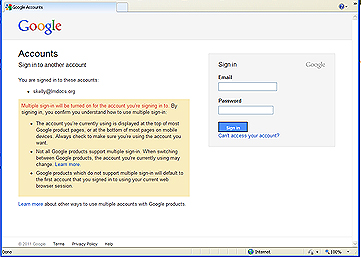
3.       This will open a pop-up window that prompts you to log into your other account.  This is where you will enter your personal Google Docs account info. 
Signing in this way automatically turns on the Multiple Sign-In feature for Google, which is detailed on the left of this page, informing you that:

·         The account you’re currently using will be displayed at the top of most Google product pages, or at the bottom of most pages on mobile devices. Always check to make sure you’re using the account you want.

·         Not all Google products support multiple sign-in. When switching between Google products, the account you’re currently using may change.

·         Google products which do not support multiple sign-in will default to the first account that you signed in to using your current web browser session.


4.       Once you sign in, your personal Google Docs account loads into the pop up, allowing you to jump back and forth between your personal and professional lives with the greatest of ease!


Wednesday, November 23, 2011

Friday Tech Tip: Zombie Schoolwires Pages! (Murray Avenue Edition)


Hello everyone -

This is from the 'learn from my mistakes' file... 

All of us to some degree or another maintain a professional website for school using SchoolWires (that's the software we all use to make edits and changes to our sites).

If you are like me, you may have some pages that you are not using at the moment, but don't want to delete.  So, Schoolwires allows you to change thier status from 'Active' to 'Inactive', rendering them invisible.


'Active' & 'Inactive'
states in Schoolwires.
 ...or so you might think!  I had put together a blog through schoolwires for a class I taught last year, and wanted to hold on to it in case I wanted to repurpose it later, so I rendered it 'Inactive.'  Task completed, move on to the next million things to do.  But then...

...I get an email from a parent who had 'Googled' her child, in an effort to examine her digital footprint.  In the process, Google served up the Schoolwires page I had rendered 'inactive'.  Back from the dead to haunt me! She asked me to remove her daughter's name from the page, stating that she hadn't given her permission to post her name.  That's all true.  So, I think there's really two lessons here:
  1. Don't inavertantly expose your students:
    Our district has a policy in place regarding this kind of thing.  It's in the document titled "Lower Moreland Township School District Website Guidelines", and can be found at http://www.lmtsd.org/Page/84.  I've excerpted the passage that's relevant to this discussion here:

    Full student names are not to be used in any Lower Moreland Township School District related webpage where the Lower Moreland Township School is identified. When mentioned in text, use of the student’s first name and the first initial of the last name is appropriate.
    So: first name & last initial.
  2. The second lesson is that an inactive schoolwires webpage can still be found by Google, and likely through other search engines too. 

Hopefully, these two little tips will help keep you and your students safe.
A word about Edmodo, especially since so many of us here at Murray have started using it.  Edmodo is more secure - using the 'Group Code' method of controlling access.  If you have questions or concerns about your or your students privacy, I welcome your questions - it is a timely & relevant topic that all of us who are bringing social media into our lessons must get right.

Friday, November 11, 2011

Friday Tech Tip (Murray Ave Edition): Changing the color of an Edmodo group.


This past Tuesday, many of us (at Murray) started using Edmodo for the first time, and were excited to begin to realize its ease of use and practical applicability to 21st century skills, like working collaboratively and using information, communications & technology to name a few. ( http://www.p21.org/overview/skills-framework.)
However, by the end of the 'intro to edmodo' sessions, there were a bunch of little unanswered questions. 
One was how to change the color assigned to a group (they all come in as blue by default).  Color coding can make groups easier to organize visually, and make your calendar view much friendlier. 
Changing the color is a snap.  Here’s how:
1.       In Edmodo, find the group you want to change in the group list on the left.
2.       Click the small blue square to the left of group name.  A color picker pops up.
3.       Pick and click your new color.
4.       Voila!  New color.
If you have other Edmodo questions or issues, let me know and I’ll try to address them in future Friday Tech Tips!


Wednesday, November 2, 2011

Friday Tech Tip: Logging onto LMDocs for the First Time


Hello everyone -

This Friday tech tip is coming a day early, in preparation for next week when Murray and High School staff will be introduced to our district's 'Google Docs for Education' accounts, or 'LMDocs' for short.

LMDocs are district-sponsored Google accounts, that permit both staff and students the wicked awesome power of using Google Docs.  More on that in the near future.  But for now, the tech tip:

I had heard that the login process might be a little awkward/complicated the first time through, so I made a screencast of trying to log in for the first time myself.  (A 'screencast' is a recording of what's going on on your screen, together with audio narration.)  My hope was that I could preview any trouble spots and provide workarounds for you.

The upshot is this: to log in, you need to go through two "Captchas" (those little wavy letter things that you sometimes need to enter online to prove that you are a human and not a machine.)  Other than that, it's pretty straightforward.

You can watch the screencast of the login process (it's a little over 3 minutes) below:


More on Google Docs in the near future!  Happy logging in!


Friday, October 28, 2011

Friday Tech Tip: Displaying a Single Line in eSchool Gradebook:


Sometimes you need to review a student's grades with them, so you pull up their grades to date in your eSchool Gradebook, but don't want them to see the grades for the rest of the class. 

Violation of privacy.
There's a solution.  Just display the single row of grades for that particular student before you call them up.  Here's how:
  • Click anywhere in the row that you want to display.  The row will indicate that it's been selected by displaying a highlight color on the student's name to the left.
  • In the upper right hand corner of the table containing all of the grades for the whole class, there is a small checkbox titled "Show Only Selected Row." 
  • Check it.
  • Now, only that student's records are displayed.  Privacy preserved!
To undo it, just uncheck the box; it toggles on or off.

Friday, October 21, 2011

Friday Tech Tip (Murray Avenue Edition): Tiki-toki.com Creates Beautiful Timelines!


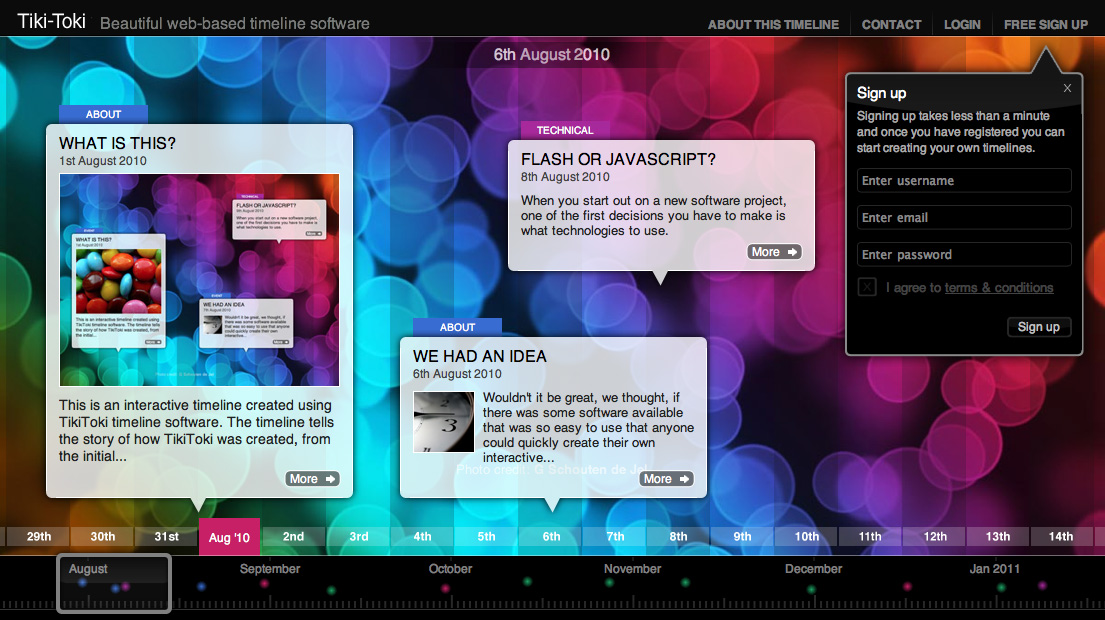
Tiki-Toki is a web2.0 tool that creates really beautiful interactive timelines that you can share on the web.  Tiki-Toki works in your internet browser, is really simple to use, and there’s nothing to download.  With an email address a user can sign up for a free account (which limits you to one timeline.)

You can embed images, video, and audio easily, and there’s built-in integration with Flickr for images and YouTube and Vimeo for videos.  Students can sharing a timeline easily by copy and pasting a URL that can then be emailed or posted to a teacher, friends or colleagues.


I’ve just introduced this tool to my 7th grade classes, and they’ve produced some pretty impressive results.  Here are two student examples, followed by some other examples of what could be done with this tool:
 

The range of uses is vast, including charting the life of a famous artist or musician, documenting a family history, keeping a personal journal, or exploring key historical events.  
Here’s a brief overview on YouTube:
I’d be interested to hear how you use tiki-toki in your own classes! 


Thursday, October 6, 2011

Friday Tech Tip: Turning off Email Alerts in Outlook

On The Shelf 4 Kids has graciously agreed to archive the Friday Tech Tips from Murray Avenue... and this is the first!  Enjoy!

It happens to all of us.

We're in there, doing it, teaching our lesson, when suddenly the lesson is interrupted by a computer chime and a little message in the corner of the smartboard showing everyone in class a summary of the email you just received.  Disruptive and annoying at best.  A violation of privacy at worst.

If you don't want them, turn 'em off!

It's different in Outlook 2010 than in the old Outlook.  Here's how:

  1. In Outlook, click on the orange 'File' tab in the upper left hand corner.
  2. Once you are there, select 'Options' from the list on the left.
  3. In the options window that pops up, choose 'Mail'.
  4. On this page, under 'Message Arrival', do the following:
    1. Uncheck 'Play a sound'
    2. Uncheck 'Display a desktop alert'
      (By leaving 'Show and envelope icon in the taskbar', you can still be alerted when you have new mail, but it isn't disruptive to your lesson flow.)
  5. Click OK and you are all set!